
Applies to:
MCP-enabled AO (preview)
You can use AO from AI assistants such as Claude, ChatGPT, Gemini Enterprise, Cursor, Codex and VS Code, through the Model Context Protocol (MCP). Ask about your projects, files, visualizations, objects, groups and telemetry, or how to do something in AO, and the assistant looks it up in AO for you. If you allow it, it can also make changes for you, such as creating a project, adding objects or sharing with a group.
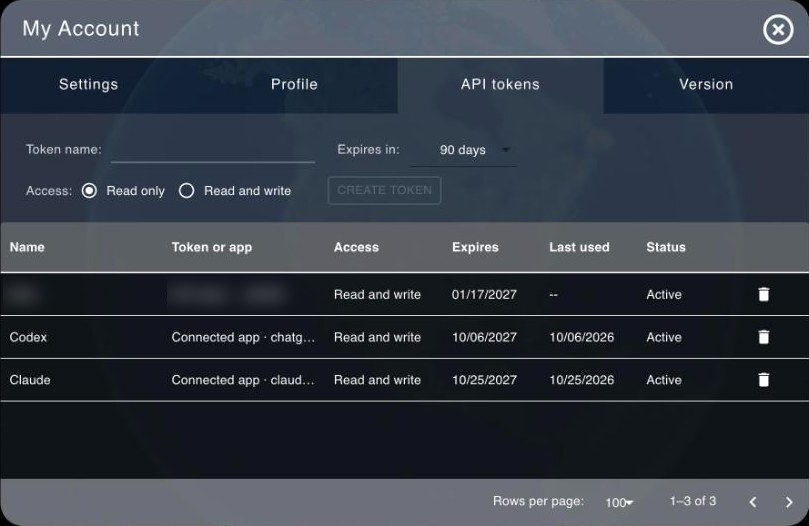
To tell whether your AO is MCP-enabled, open My Account: an MCP-enabled AO has an API tokens tab.
What the assistant can do
- Read only, unless you allow changes. Each token and each connection is read only unless you choose read and write when you create or approve it.
- The same access as you. It sees what you can see in AO, across all your organizations, and nothing more. With write access, it can change only what your role allows.
- It never sees your password. You sign in to AO yourself, or give the assistant an API token that you can revoke at any time.
- Files stay in AO unless the assistant has a shell. Through the connection, it can tell you a file's name, type and size, and what AO extracted from it. An assistant that runs on your computer can also upload and download files and whole folders.
- It can show you things in AO. In an AO tab you choose to follow, it opens projects, visualizations and screens, turns layers on and off, and moves the map.
Things to try
Ask in plain language, as you'd ask a colleague who knows AO. The assistant finds the right data itself: you don't need ids or AO's field names.
- "What's been happening in our organization this week?"
- "Which of my projects are near Pearl Harbor? Any wrecks?"
- "Tell me about the project Kaena Point: its files, visualizations, and anything that failed."
- "Which file types can AO visualize?"
- With write access: "Create a private project for next week's AUV survey off Kaena Point, in UTM zone 4N." or "Share Kaena Point with the Survey Team group."
- With your AO tab following: "Show me Kaena Point, and open its Files tab." or "Turn on NOAA's nautical charts and take me to Pearl Harbor."
- From an assistant on your computer: "Upload this folder to the project, and keep it in sync."
Use the most capable model your assistant offers, especially for changes.
Before you start
Your assistant connects to AO's MCP address: your AO address followed by /mcp, such as https://ao.example.com/mcp. There are two ways to connect:
- Sign in with AO, for claude.ai, ChatGPT and Gemini Enterprise, and developer tools that offer it, such as Claude Code, Cursor and VS Code. This needs an AO that uses HTTPS.
- Paste an API token, for developer tools, assistants on your own network, and AO OnBoard.
Either way, you choose what the assistant may do: Read only (the default), or Read and write, called Read and change on AO's approval page.
Connect claude.ai, ChatGPT or Gemini Enterprise
claude.ai
- Open Customize > Connectors and choose Add custom connector. On a Team or Enterprise plan, an owner adds the connector in Organization settings > Connectors, and members connect to it from Customize > Connectors.
- Enter
https://<your AO address>/mcpand add it. - Connect. AO's sign-in page opens: sign in as usual, with your password or your organization's single sign-on.
- AO shows Connect an app to your AO account, with the app, where it sends you back to, and the account you're signed in as. If the app asks for write access, choose Read only or Read and change. Check them and choose Approve.
ChatGPT
- Turn on developer mode in ChatGPT's settings. Whether it's available depends on your ChatGPT plan; on Business, Enterprise and Edu workspaces an admin may need to allow it.
- Add a connector with the address
https://<your AO address>/mcp, and choose OAuth for authentication. - Sign in to AO and approve, as above.
Gemini Enterprise
A Gemini Enterprise admin connects AO once for everyone in the organization.
- Register Gemini Enterprise with AO. This gives a client ID and a client secret. AO shows the secret only once, so keep both somewhere safe, such as a password manager:
curl -s -X POST https://<your AO address>/api/v1/oauth/register \
  -H 'Content-Type: application/json' \
  -d '{"client_name": "Gemini Enterprise",
       "redirect_uris": ["https://vertexaisearch.cloud.google.com/oauth-redirect"],
       "grant_types": ["authorization_code", "refresh_token"],
       "response_types": ["code"],
       "token_endpoint_auth_method": "client_secret_basic",
"scope": "read write"}' - In Gemini Enterprise, add AO as a custom MCP server (Google's guide "Set up a custom MCP server"), with OAuth: the MCP server address
https://<your AO address>/mcp; the client ID and secret from step 1; the authorization URLhttps://<your AO address>/api/v1/oauth/authorizeand the token URLhttps://<your AO address>/api/v1/oauth/token; the scopesread write(orreadalone, to keep everyone read only); and PKCE turned on. - People then sign in to AO and approve when Gemini first asks. AO's approval page marks Gemini Enterprise as an unverified app, because it registered itself: check that it sends you back to
vertexaisearch.cloud.google.com.
For everyone in your organization: on Claude Team and Enterprise, and ChatGPT Business, Enterprise and Edu, an admin can add AO once, and each person then signs in to AO as themselves, so AO's roles apply to each of them. Don't connect AO through one shared AO account: everyone would act as that one person, and AO couldn't tell who did what.
Connect with an API token
Use this for developer tools, assistants that run on your computer or network, and AO OnBoard.
- Create a token in My Account > API tokens > Create token: give it a name, choose when it expires (7, 30, 90, 180 or 365 days; 90 by default) and its Access: Read only (the default) or Read and write. Copy it: AO shows it only once.
- Keep it in an environment variable, set in your shell profile or by your password manager, never in a file you share or commit:
export AO_TOKEN='<your token>' - Add AO to your tool.
Claude Code (the single quotes keep ${AO_TOKEN} as a reference, so the token itself isn't saved in Claude Code's settings):
claude mcp add --transport http ao https://<your AO address>/mcp \
  --header 'Authorization: Bearer ${AO_TOKEN}'
VS Code (.vscode/mcp.json, or MCP: Open User Configuration). VS Code asks you for the token, so it isn't written in the file:
{
  "inputs": [
    {
      "type": "promptString",
      "id": "ao-token",
      "description": "AO API token",
      "password": true
    }
  ],
  "servers": {
    "ao": {
      "type": "http",
      "url": "https://<your AO address>/mcp",
      "headers": { "Authorization": "Bearer ${input:ao-token}" }
    }
  }
}
Cursor (~/.cursor/mcp.json, or .cursor/mcp.json in a project):
{
  "mcpServers": {
    "ao": {
      "url": "https://<your AO address>/mcp",
      "headers": { "Authorization": "Bearer ${env:AO_TOKEN}" }
    }
  }
}
Codex (~/.codex/config.toml):
[mcp_servers.ao]
url = "https://<your AO address>/mcp"
bearer_token_env_var = "AO_TOKEN"
Other assistants: any MCP client that supports Streamable HTTP and custom headers works. Give it the address and the header Authorization: Bearer <your token>, using the client's own way to keep secrets.
Sign in with AO from a developer tool instead: where AO uses HTTPS, Claude Code, Cursor and VS Code can sign in with AO rather than use a token. Add AO's address without the Authorization header, and the tool opens AO's sign-in page when it first connects (in Claude Code, run /mcp and choose AO). AO's approval page warns that the app sends you back to a program on your computer: that's expected for these tools, so approve only if you just started the sign-in yourself.
What an assistant can change
With read and write access, an assistant can do what your role allows through AO. For example, it can create projects and change their details, add folders and move files, visualize files and rename or delete visualizations, add, change and delete objects, share projects with groups and create share links, copy files in from your organization's cloud storage, and, if you're an Admin, manage users and groups.
Some things no assistant can do, even with write access: create or revoke tokens, set or reset passwords, approve app sign-ins, change single sign-on settings, sign you out, switch your active organization, or change your email address. Do those in AO's web app.
Assistants use two tools for changes: ao_api_write for ordinary changes, and ao_api_write_destructive to delete, move or cancel things. Because they're separate, you can let the assistant make ordinary changes without asking, and still confirm every deletion:
- Claude Code: allow
mcp__ao__ao_api_operations,mcp__ao__ao_api_read,mcp__ao__ao_help_topics,mcp__ao__ao_help_readandmcp__ao__ao_api_writein/permissions(or.claude/settings.json), and putmcp__ao__ao_api_write_destructiveunder ask. - claude.ai and the Claude apps: in Customize > Connectors, choose AO, and under Tool permissions set
ao_api_writeto Always allow and keepao_api_write_destructiveon Needs approval. - Codex: set
approval_mode = "approve"forao_api_writeand"prompt"forao_api_write_destructive, under[mcp_servers.ao.tools.<tool>]. Don't use Full access, which runs every tool without asking. - ChatGPT asks before every change.
Move files and folders with an assistant
An assistant that runs on your computer and has a shell, such as Claude Code, Codex, Cursor or VS Code, can move files and whole folders between your computer and AO. Ask for the result, such as "Sync ~/surveys/kaena-2026 with Kaena Point", and it works out what to send:
- Only what's new or changed is sent, compared by content, and folders keep their structure.
- You see the plan first, such as "12 new here, 3 changed, 2 only in AO", and it asks before replacing a file on either side. It never deletes files unless you ask.
- Downloads are checked against AO's copy.
It needs a Read and write token (Read only is enough to download) in the AO_TOKEN environment variable of the shell it runs in. Assistants without a shell, such as claude.ai or ChatGPT, can't reach the files on your computer: they can copy files between your organization's cloud storage and AO, or you can upload in AO's web app.
Let the assistant show you things in AO
- Ask it to show you, or ask "what am I looking at?" while you work in AO yourself.
- Follow once per tab. The first time, the assistant gives you a link. Open it in the browser where you're signed in to AO, and choose Follow. The tab then shows that it's following, with Stop.
- What it can do there: open projects, visualizations, a project's tabs and AO's other screens, turn layers on and off, and move the map. It sees what that tab shows: the screen, the projects and layers on the map, and where the map is.
- What it can't: click, type, draw, open files or web addresses, see the picture itself, switch your organization, or change anything in AO by showing it.
- Stop at any time with Stop. Following also ends after 30 minutes without a request.
AO OnBoard and private networks
- AO OnBoard serves AO over plain HTTP on its private network unless HTTPS is set up with
./ao-mgr.sh tls setup(see Administering AO). Over plain HTTP, signing in with AO isn't available: use an API token, with the addresshttp://<onboard address>/mcp. Over HTTPS, use the HTTPS address, and signing in with AO works. Your own HTTPS proxy in front of AO also works if it passes on the originalHostheader andX-Forwarded-Proto. - AO on a private or air-gapped network: only assistants that can reach AO's address can connect, such as developer tools and self-hosted assistants on the same network, with a token or, where AO uses HTTPS, by signing in with AO. claude.ai, ChatGPT and Gemini Enterprise connect to AO from their own servers on the internet, so they can't reach an AO that isn't reachable from the internet. AO itself needs no internet connection for this; your assistant still needs to reach its own AI model.
- AO that can't reach the internet: signing in with AO works for the apps AO already knows (ChatGPT, Claude Code and VS Code) and for apps that register themselves with AO. Other apps can't sign in with AO, because AO would need the internet to look up their details: give them a token instead.
Revoke access
My Account > API tokens lists your API tokens and connected apps, with roughly when each was last used. Choose the  bin icon (Revoke) on a row: a revoked token stops working within a minute, and a revoked app loses access until you connect it again. Setting a new password revokes all of them. Tokens also stop working when they expire, and a connected app stays connected as long as it's used at least once a year.
Keep your data safe
- Treat a token like a password. Anyone who has it can read what you can, and with a read and write token, change it too. Never paste it into a chat or commit it. If one leaks, revoke it and create a new one.
- Give write access only where you need it. Use read-only tokens and connections by default.
- Keep tool confirmations on. Text in AO, such as project descriptions and file names, is written by people and could contain instructions aimed at an AI. If your assistant also has tools that send data out, such as email or web access, keep confirmations on, at least for deletions.
Related: Getting started with the AO API · Coming soon in AO · Security in AO