
Applies to:
self-hosted AOAO OnBoard
On your own AO server, connect AO to your mail server so it can email invitations, password reset links and notices about failed visualizations.
When a visualization fails, AO emails the person who started it, and also emails Terradepth support a notice through this mail server. The notice gives the person's name and email address, your organization, your AO address, the project and file names, and the error with its technical details. When an Admin adds, changes or removes a user in AO, AO also emails Terradepth support a notice through this mail server, with the person's name, email address, organization, role and AO user ID.
Who can do this: your IT administrator, on the AO server. On AO in the cloud and AO for government, Terradepth runs email for you: just make sure your mail gateway accepts AO's mail (see Network and firewall requirements).
Set up or change email
- On the AO server, go to the folder your AO release is in and run
./ao-mgr.sh smtp. On servers withao_managerinstead, runsudo /opt/terradepth/ao_manager smtp. First-time setup (./ao-mgr.sh init) asks the same questions. - Answer each prompt. Press Enter to keep the value shown in brackets.
Prompt Enter Mail Server Your mail server's name or IP address. The AO server must be able to look it up. Mail Server Port 465 (SSL) or 587 (STARTTLS). On any other port, AO signs in and sends without encryption. Mail From Account The address AO sends from, such as ao@example.com. AO signs in to the mail server as this account. Mail From Account App Password (leave blank to keep current) That account's password, or an app password if your mail service needs one. Required: AO always signs in to the mail server, so a relay that takes mail without sign-in won't work. It shows as you type, so type it where no one can see. Company Name, Company Support Email, Internal Contact Name, Internal Contact Email Your organization's name and contacts. AO puts them in its emails as the people to ask for help. - Check the summary and answer
Yto Apply changes? [Y/N]. AO restarts its email and sign-in services, which can take a few minutes. People can't sign in until they're back. - To test, choose Forgot password? on the AO sign-in page and enter your own email.
Without email
People don't get invitations or reset links. Instead:
- Create accounts with a password you set:
./ao-mgr.sh create_user. It shows the password as you type and doesn't check AO's password rules, so type it where no one can see and choose one that meets the rules. - Pass on a reset link yourself: open the person in Users and choose Copy Reset Link. Admins have this button when the organization has Allow Admins to Copy Reset Token turned on: to turn it on, contact support (see Features turned on per organization). The link lasts 24 hours. It copies only when AO is open over
https://, or athttp://localhost:8888in a browser on the AO server itself (AO opens it ashttp://127.0.0.1:8888): on a plainhttp://address, the copy fails. If you copy it on the AO server, changehttp://127.0.0.1:8888at the start of the link to your AO address before you pass it on.
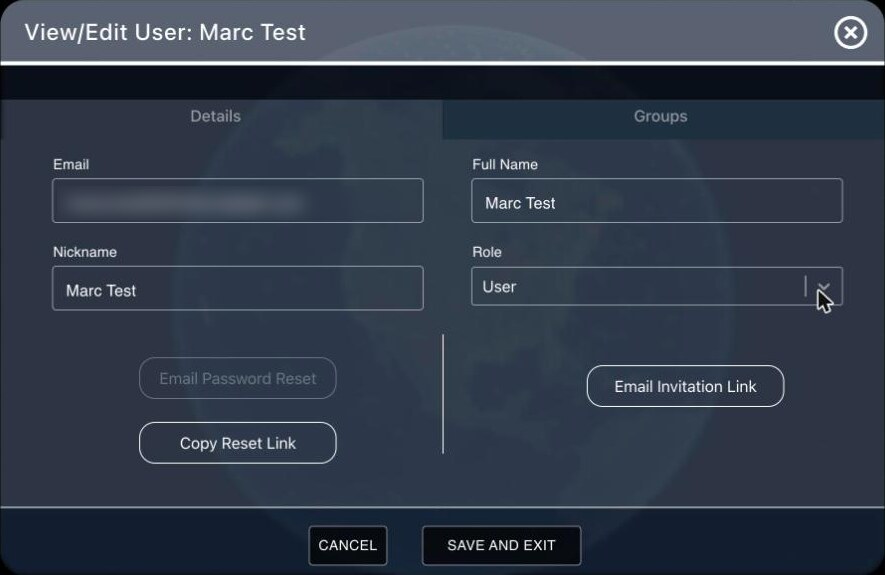
Until someone sets their password, Email Invitation Link is the one you can use; after that, it's Email Password Reset. Both send the same email, titled "Reset Your Password For Terradepth Absolute Ocean". Each button pauses for a minute after you use it. For someone who already has a password, AO also needs 3 minutes between reset links, and after 7 without the person signing in, it stops making them for an hour.
Related: Signing in and passwords · Administering AO · Set up your AO server: checklist