
Applies to:
AO OnBoard
This article covers where data is kept on AO OnBoard, how to move data on and off it, and how upgrades to new AO releases work.
Where data is kept
| Where | Use it for |
|---|---|
| AO | Projects, files and visualizations in AO |
| The workstation's data drive or folder | Working data and deliverables in Windows. The guide delivered with your system names it. |
| The workstation's system drive (C:) | Windows and installed software |
How much space each has depends on your system. See the guide delivered with your system or ask support@terradepth.com. On rack-server systems, AO and the workstation each have their own share of the system's storage. On compact rugged computers and laptops, AO keeps its data on the computer's own drives, alongside Windows, so large files in Windows also leave less room for AO.
Some systems keep data on mirrored drives, so if one drive fails your data is still on the other. Mirroring isn't a backup: it doesn't bring back a file deleted by mistake, or protect against losing the system. Keep copies of important data elsewhere, for example in AO in the cloud with Remote Sync, or on external drives. For more storage, contact support@terradepth.com.
Move data on and off
| To | Use |
|---|---|
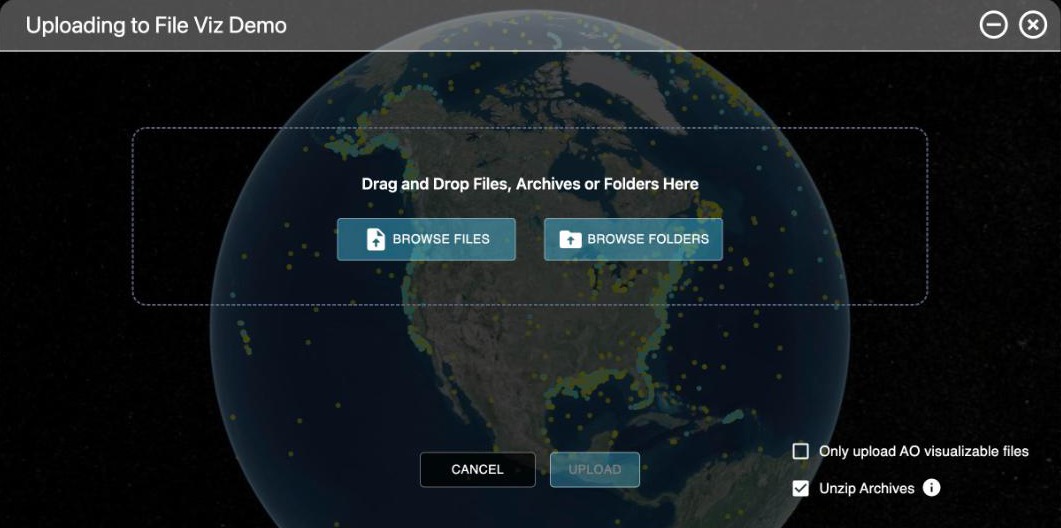
| Upload from, or download to, a computer on your network | AO in a browser. See Moving files in and out of AO and Best practices for loading data to AO. |
| Bring data in, or take it away, on an external drive | The workstation's USB ports. See External drives, below. |
| Copy projects to AO in the cloud | Remote Sync, while AO OnBoard has internet access |
| Work in AO with files that stay on a file server on your network | A cloud mount to the file server. Terradepth sets it up with you. |
External drives
- Connect the drive to the processing workstation. On rack-server systems, use the USB hub or ports your system's guide shows: drives that need more power than a hub gives go in the server's own USB ports. The drive appears in Windows on the workstation.
- On the workstation, by remote desktop or at the computer, copy what you need to or from its data drive or folder.
- To get files into AO, open AO on the workstation and upload them from the external drive or from the data drive or folder.
For the most reliable copies, use drives with their own power supply, formatted as NTFS or exFAT.
With the virtual machine image, there's no workstation from Terradepth: upload files to AO in a browser from any computer on your network.
Upgrades
AO OnBoard runs the AO release installed on it, and it can be upgraded to new AO releases. To plan an upgrade, contact support@terradepth.com. If your IT team runs AO, see Upgrades in Administering AO.
- No internet needed: each upgrade is a self-contained package from Terradepth, with instructions. It installs without internet access, so it can reach your system however you approve, for example on a drive.
- A planned time: AO is unavailable while it upgrades. Agree on a time when nobody needs AO.
- Before it starts: let uploads and visualizations finish, and ask people not to add or change data until the upgrade is checked. The upgrade procedure starts with a backup of AO and its data.
- Your data carries over: projects, files, visualizations and users stay as they are. The upgrade checks AO's database and services before it finishes, and someone then signs in and checks existing projects before people start making changes again.
- AO only: an AO upgrade doesn't change Windows, the processing workstation or the software on it.
After an upgrade, sign in and open a project you know. To see what changed, read the release notes for the release you upgraded to.
Availability: Remote Sync is turned on per organization, and Terradepth support sets up cloud mounts. To use them, contact support@terradepth.com.
Related: Moving Files In and Out of AO · Remote Sync · Using AO offline