
A cloud mount links an AO project to storage your organization already has, such as an S3 bucket, an Azure container or a file server. The files stay in your storage, and you work with them in the project's Files tab. This article covers who can do what, the storage AO connects to, and what works differently in a mounted project.
Who can do what
| What you can do | Admin | Professional | User | Guest |
|---|---|---|---|---|
| Attach a project to a mount, or change its mount | ✓ | |||
| Browse, upload, download, rename, copy, move, delete and visualize files in a mounted project | ✓ | ✓ | ||
| View a mounted project's visualizations on the map | ✓ | ✓ | ✓ | ✓ |
Deleting, renaming and moving change the files in your storage. Deleting a folder deletes everything in it there, and can't be undone from AO.
Professionals work in the mounted projects they created or reach through their groups (see User Management). To add a mount for your organization, see Add a cloud mount.
Storage AO connects to
Each mount has a name that's unique in your organization and connects to one storage location. Once saved, the mount's sign-in details aren't shown again. Have these ready:
| Provider | Where | Signs in with | Optional |
|---|---|---|---|
| S3 (AWS or S3-compatible) | Bucket | Access key and secret key | Region, endpoint, path-style requests |
| GCS (Google Cloud Storage) | Bucket | Service account JSON key | Project ID |
| Azure (Blob storage) | Storage account and container | Account key, or a SAS URL | Endpoint, for Azure Stack |
| SFTP (SSH) | Host | Username and password | Port |
| Google Drive | Your drive | OAuth token, or service account JSON key | Root folder ID, shared drive ID |
| SMB (CIFS) | Host and share | Username, and password if needed | Domain, port |
| FTP | Host | Username and password | Port |
| AO Instance (another AO) | Its address, and one project there | Email and password, or a token | Organization there (otherwise that account's active organization) |
FTP isn't encrypted: use SFTP where you can.
Everyone working in a mounted project uses the mount's sign-in details, so give AO sign-in details that reach only the data AO should use. A mount can start in a folder of your storage; that sets where browsing starts, not what the sign-in details can reach. An AO Instance mount shows one project's files, which stay on the other AO. To give another AO its own copy of whole projects, use Remote Sync.
Cached and Active
Each mount has two switches, both on by default:
- Cached: to visualize a file, AO first copies it from your storage into the project. With Cached on, AO keeps that copy and reuses it while the file is unchanged. With it off, AO deletes its working copy on the AO server once the visualization finishes or fails. Either way, AO keeps the visualizations you make: they stay in the project if you turn the mount off, remove it, or switch the project's File Source to AO's own storage. Files you never visualize or copy into AO stay only in your storage.
- Active: turn it off to pause the mount. An inactive mount isn't offered as a File Source, and its files can't be opened until it's active again. Active stays on if your storage later can't be reached: AO doesn't change it on its own.
AO tests the connection to your storage after each save and says if it fails.
Attach a project to a mount (Admins)
- Open Projects at the bottom of the left toolbar, and open the project's Details tab (or create a project).
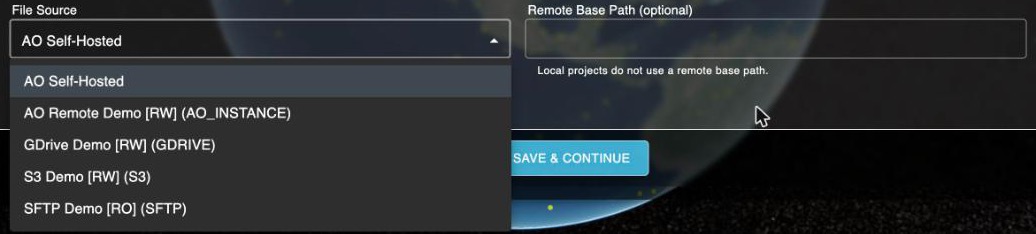
- Under File Source, choose the mount. AO Self-Hosted means the files are stored in AO.
- Recommended: in Remote Base Path, enter the project's folder as the full path from the top of the bucket, container or share, such as
surveys/2026/harbor. Professionals in the project then work only in that folder. - Choose Save & Continue.
Other roles see File Source but can't change it.
What works differently in a mounted project
- Uploading happens in two steps: Step 1/2: Uploading to AO..., then Step 2/2: Transferring to cloud storage.... Unzip Archives extracts zip files into your storage; on AO Instance mounts, turn it off. Uploading a file never replaces one in your storage. With Unzip Archives on, extracted files replace files with the same name in that folder.
- Visualizing starts with Preparing file from cloud mount — this may take a moment.... A shapefile brings the files that share its name.
- Downloading is one file at a time.
- Copy and Move work for files (not folders) between a mounted project and other projects in your organization. A move removes the original only after the copy succeeds. Visualizations stay in the project they were made in.
- Unzip and Open in Mission Planner aren't offered.
If something goes wrong
| You see | What to do |
|---|---|
| Cloud Mount Configuration Error | Ask your Admin to check the project's Remote Base Path. If it's right, contact support to check the mount. |
| Cloud Mount Path Not Found | The project's folder, or the mount's, isn't in your storage. Check it exists and is spelled exactly. |
| Forbidden | You need the Professional role or higher and access to the project. Ask your Admin. |
| Unexpected Error when the Files tab opens | The mount may not be Active. Ask your Admin. |
| Already on cloud — rename and retry | That folder already has a file with this name. Rename your file and upload again. |
Availability: Terradepth support sets up cloud mounts for your organization. To add one, see Add a cloud mount.
Related: Add a cloud mount · Connecting AO to other data · Managing files in a project