
Applies to:
AO OnBoard
This article covers the accounts you use on AO OnBoard, opening AO in a browser, and connecting to the processing workstation by remote desktop.
Your accounts
Terradepth sends your sign-in details separately from the system. There are two kinds:
| Account | Signs you in to | Use it from |
|---|---|---|
| AO account | AO in a browser | Any computer on the network, or the workstation |
| Windows account | The processing workstation | Any computer on the network with a remote desktop client, or the workstation itself where it has a screen and keyboard |
The virtual machine image has no processing workstation, so with it you need only an AO account. Your AO OnBoard account is separate from any account you have on AO in the cloud.
After you first sign in, change the passwords you were given, and keep them where only the people who need them can see them. If you don't have your sign-in details, contact support@terradepth.com.
Open AO in a browser
- On a computer on the same network, open your AO OnBoard address in a browser. It's the address in the guide delivered with your system, or from Terradepth or your network team. It ends with
:8888, or starts withhttps://if HTTPS is set up for your system. - Sign in with your AO email and password. To change your password, click your initial in the top right corner, choose My Account, open Profile and choose Reset Password.
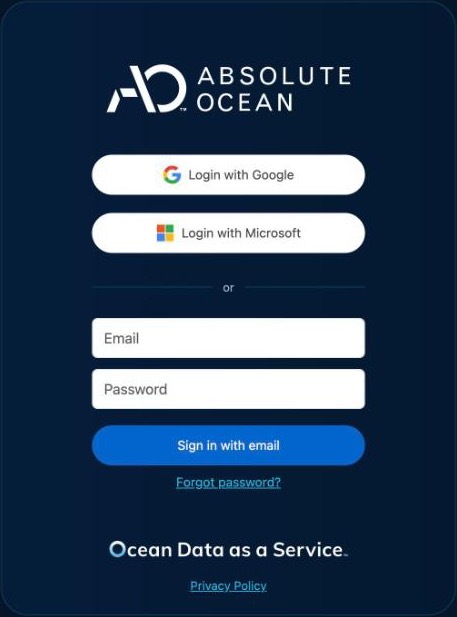
AO works in the last two versions of Chrome, Edge, Safari and Firefox. More about signing in, password rules and expired links is in Signing in and passwords.
| If | What to do |
|---|---|
| The address doesn't open | Check that your computer is on the same network, and that AO OnBoard has had a few minutes to start. If AO OnBoard moved to another network, its address may have changed: ask your network team for the new one. |
| Your browser warns about the certificate | Use the exact https:// address you were given: the certificate is for that name. If AO OnBoard uses its own certificate authority, your IT team installs its root certificate on your computer once, and the warning goes away. Otherwise, ask your IT team or Terradepth support whether to trust it before you go on. |
Single sign-on with Microsoft or Google works only when AO OnBoard has HTTPS set up and internet access. Without it, sign in with your AO email and password. To set up single sign-on, including with an identity provider on your own network, contact support@terradepth.com.
Connect to the processing workstation
- Open a remote desktop client, such as Remote Desktop Connection on Windows or Windows App on a Mac.
- Enter the workstation's address, from the guide delivered with your system, Terradepth or your network team.
- Sign in with your Windows account.
- To open AO on the workstation, double-click the AO OnBoard or Absolute Ocean shortcut on the desktop if there is one, or open your AO OnBoard address in a browser.
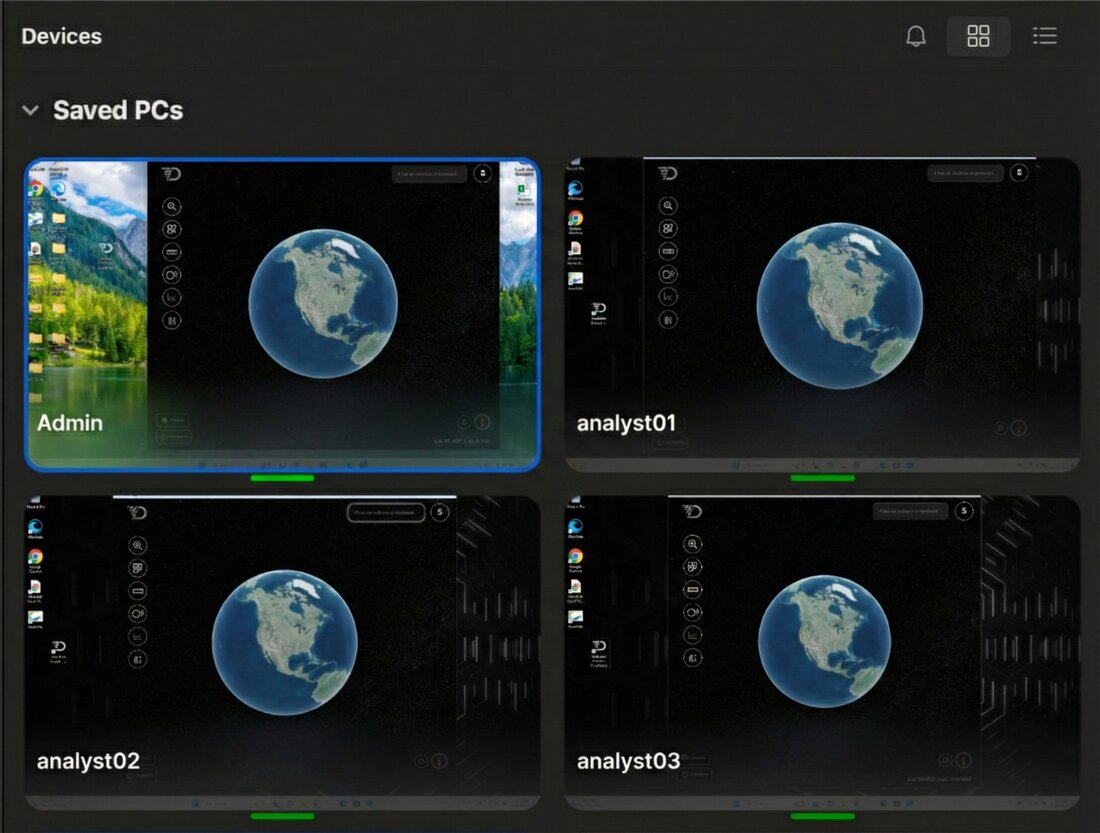
On systems with a graphics card for the workstation, 3D views and processing software stay smooth, even over remote desktop.
Sharing the workstation
- On most systems, more than one person can be signed in at once, each in their own Windows session. How many depends on your system: see the guide delivered with it, or contact support.
- Closing the remote desktop window disconnects you but leaves your session and programs running, so long processing jobs keep going. Connect again with the same account to pick up where you left off.
- Sign out of Windows when you're finished to close your session and its programs.
- Save working data and deliverables where the guide delivered with your system says. See Moving data and upgrading AO OnBoard.
- Installing or licensing software needs a Windows administrator account. Ask the person in your organization who holds it, or contact support.
Adding people without email
AO OnBoard emails invitations and password reset links when it can reach a mail server. Without one, an Admin can still add people: click your initial in the top right corner, choose Users, then Add User. Then open the new user and choose Copy Reset Link to pass on a link for setting a password. The link lasts 24 hours. It copies only when AO is open over https://, or at http://localhost:8888 in a browser on the AO server itself (AO opens it as http://127.0.0.1:8888): from your AO OnBoard address over plain http://, the copy fails. If you copy it on the AO server, change http://127.0.0.1:8888 at the start of the link to your AO OnBoard address before you pass it on. See User Management.
To have AO OnBoard send email through your own mail server, your IT administrator can set it up (see Set up email for invitations and password resets), or contact support@terradepth.com if Terradepth manages your system. Other admin tasks are in Administering AO.
Availability: Copy Reset Link is turned on per organization. To use it, contact support@terradepth.com.
Related: Moving data and upgrading AO OnBoard · Signing in and passwords · Troubleshooting and getting help