
A cloud mount connects your organization to storage it already has, such as an S3 bucket, an Azure container or a file server, so projects can work with the files where they are. Terradepth support adds the mount; then an Admin attaches projects to it.
1. Prepare the storage
- Create sign-in details for AO that can list and read the files, and also write if people will upload, rename, move or delete files from AO. Everyone working in a mounted project uses these sign-in details, so give them access only to the data AO should use. Cloud mounts lists what each kind of storage needs, such as a bucket and an access key for S3.
- Check that AO can reach the storage. AO connects to it from the AO server: for AO in the cloud and AO for government, that's Terradepth's cloud; your own AO server must reach the storage through your firewall. See Firewall and allowlist quick reference.
2. Ask support to add the mount
Email support@terradepth.com with:
- Your organization's name, and which AO you use.
- A name for the mount, such as "survey-archive".
- The kind of storage and where it is, such as an S3 bucket name and region, or a file server and share.
- The folder to start in, if not the top. This sets where browsing starts, not what the sign-in details can reach.
Don't put keys or passwords in the email: support will tell you how to pass them on. Support adds the mount, tests the connection and tells you when it's ready.
3. Attach a project (Admins)
- Open Projects at the bottom of the left toolbar, and open the project's Details tab (or create a project).
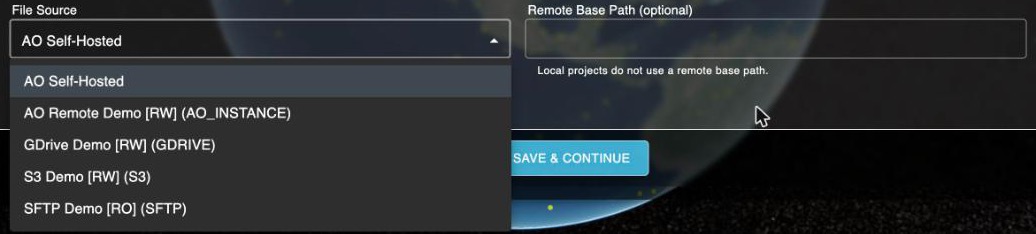
- Under File Source, choose the mount.
- Recommended: in Remote Base Path, enter the project's folder as the full path from the top of the storage, such as
surveys/2026/harbor. Professionals in the project then work only in that folder. - Choose Save & Continue.
The project's Files tab now lists the files in your storage. See Cloud mounts for what works differently in a mounted project.
Related: Cloud mounts · Connecting AO to other data · Set up your AO server: checklist