
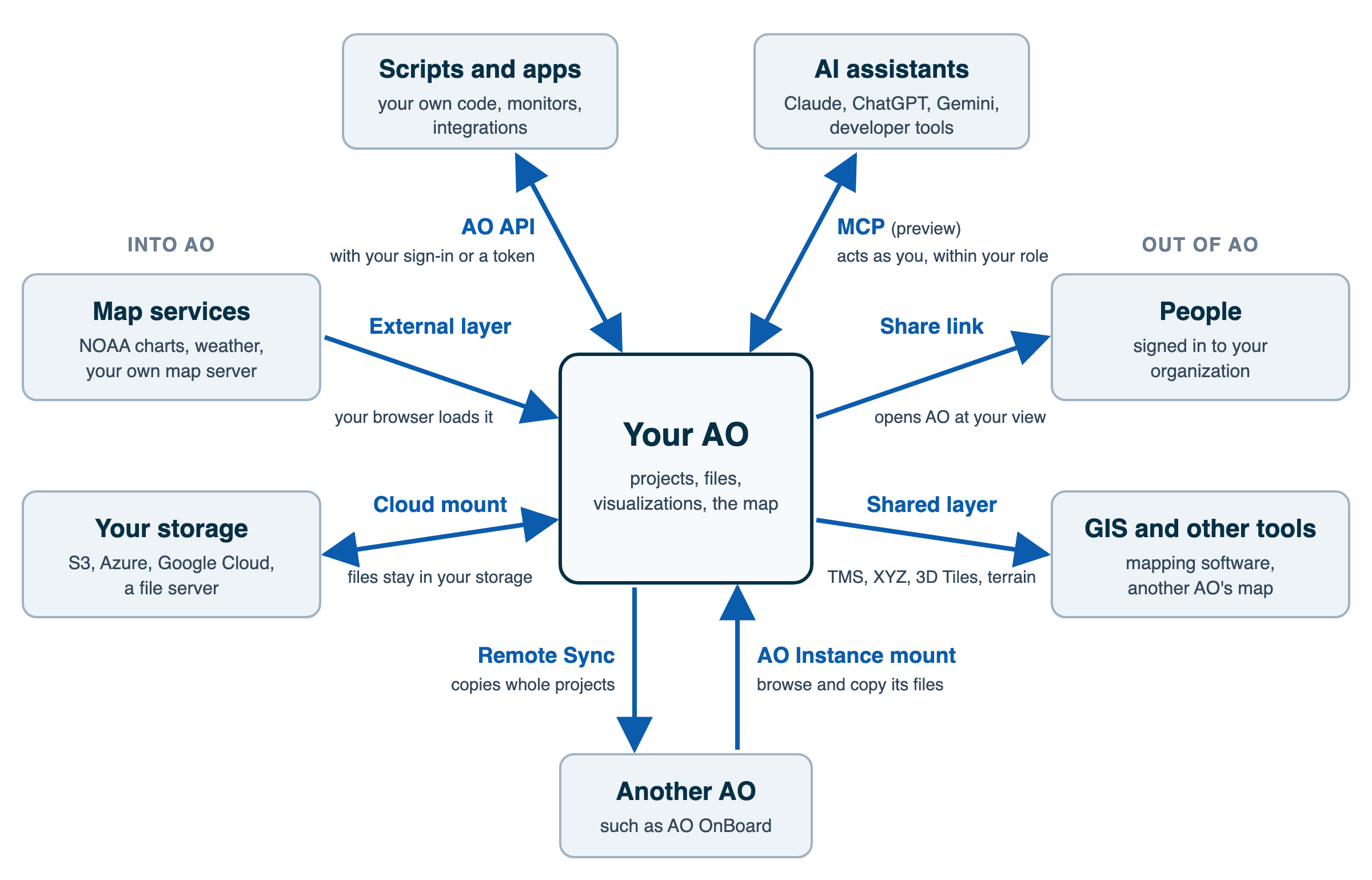
AO can show data where it already lives, share your work with people and other software, or copy projects and files: use this table to choose.
| You want to... | Use | Does your data move? | Read |
|---|---|---|---|
| Show a map service, such as NOAA charts, weather or your own map server, without importing it | An external layer | No. Your browser loads it from the provider. | External layers |
| Keep survey files in your own storage, such as S3, Azure or a file server | A cloud mount | Mostly not. Files stay in your storage, but AO keeps a copy of each file you visualize while Cached is on (the default), and the visualizations you make. | Cloud mounts |
| Show a colleague exactly what you see | Copy share link in the Layers window | No. They sign in to AO and need access to the projects in the view. | Sharing |
| Open AO layers in another mapping tool, such as a GIS | A shared layer (Copy shared-layer definition) | No. The tool loads TMS, XYZ, 3D Tiles or terrain from your AO, without signing in. | Sharing |
| Work with files on another AO | An AO Instance cloud mount | No. Files stay on the other AO; you copy the ones you need. | Cloud mounts |
| Give another AO whole projects | Remote Sync | Yes. The other AO gets its own copy: files, visualizations and objects. | Remote Sync |
| Connect your own scripts, monitors or AI assistants | The AO API, or MCP for AI assistants (preview) | Only what they read or change. They act as you, within your role, and what they read goes to them, such as to your AI assistant's provider. | Getting started with the AO API · Connect an AI assistant to AO |
| Run your own software or models on survey data | Your tools, with data from a cloud mount, the CLI or the API, and results back as files or objects | Your tools read a copy, or your storage directly | Run your own analysis on AO data |
| Move or copy files between projects or folders | The project's Files tab | Yes, within your AO. | Managing files in a project |
Which one?
Share link or shared layer? A share link is for a person: it opens AO at your view, for someone signed in to your organization with access to its projects. A shared layer is for software: a GIS tool or another AO loads one layer from your AO. Shared-layer addresses work without signing in, so share them only with people who should see the data; to withdraw one, contact support@terradepth.com.
Remote Sync or an AO Instance mount? Remote Sync copies whole projects, so the other AO has its own copy; syncing again brings only what's new or changed. An AO Instance mount links a project here to one project on the other AO: the files stay there, and you browse, visualize or copy them from here.
External layer or cloud mount? An external layer shows map images another server draws, such as charts or satellite imagery. A cloud mount gives AO your own files, such as grids and point clouds, to visualize.
Not available
- Exporting a project to a drive to import into another AO. AO has no project export or import. You can download a project's files from its Files tab, and Remote Sync copies whole projects over the network.
- Copying or moving a folder in one step. Select the files in it instead. When you move them, AO creates the destination folder.
- WMS or WMTS from AO. In a GIS tool, add AO's shared layers as TMS or XYZ tile layers.
Availability: Remote Sync is turned on per organization, and Terradepth support sets up cloud mounts. To use either, contact support@terradepth.com.
Related: External layers · Cloud mounts · Remote Sync · Sharing