
Applies to:
AO OnBoard
This article covers where to put AO OnBoard, how to connect and start it, how to shut it down safely, what happens in a power cut, and how to move it. Steps differ by kind of system (see AO OnBoard overview). For your system's exact cables, buttons and power needs, see the guide delivered with it.
Before you start
You need:
- The guide delivered with your system. It has its power needs, operating conditions and connections. If you don't have it, contact support@terradepth.com.
- A dry, ventilated place for the hardware, indoors and away from rain, sea spray and splash zones. A climate-controlled cabin is best: long exposure to salt air can shorten the life of the parts inside.
- Power that matches your system's guide. If your supply is different, contact support@terradepth.com before you plug in.
- A network connection. The network should give out addresses automatically (DHCP). To keep the same address, ask your network team for a DHCP reservation. If your network has no DHCP, contact support before you connect.
- A computer on the same network, with a web browser and a remote desktop client.
Set it up
Rack-server systems
- If the system runs in a transport case, follow its guide on the lids. Some cases must run with both lids off so they don't overheat, and with the lids off they aren't water-resistant.
- Connect a network cable from your network to the port your system's guide shows. On systems with a built-in network switch, use a free port on the switch, and leave the cables between the server and the switch as they are.
- Plug in the power. On systems with a battery backup (UPS), plug the UPS into the outlet and, if it's off, press and hold its power button until it beeps or lights up.
- If the server doesn't start on its own, press its power button once and let go.
- Wait a few minutes for AO and the workstation to start. The fans run loud at first and quiet down once the server has started.
A built-in switch joins everything plugged into it into one network, so connect it to only one of your networks. To reach a server on another network, such as a file server, AO OnBoard needs an address on that network too: Terradepth sets this up with you.
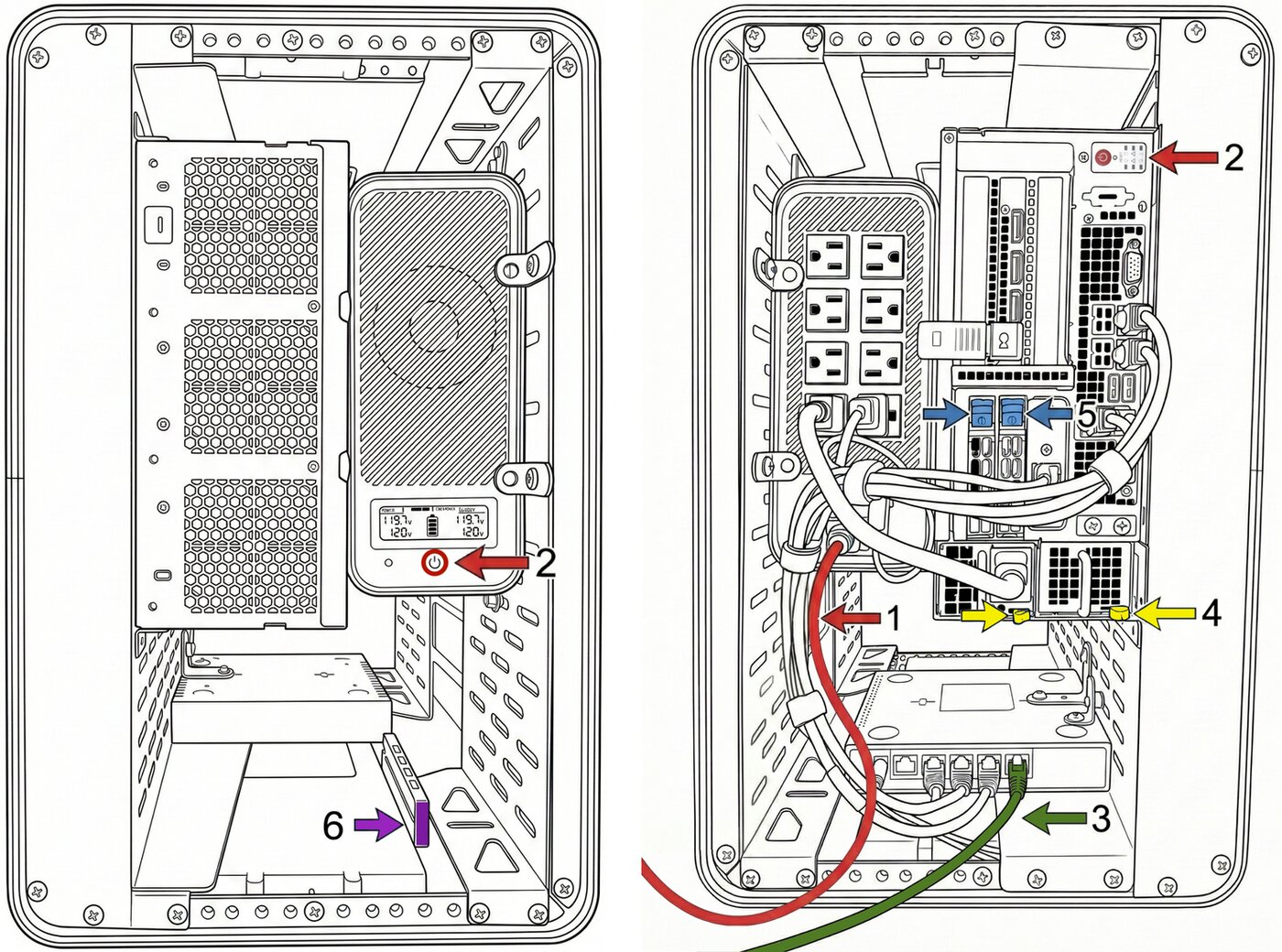
An example rack-server system in its transport case, front (left) and back (right): 1 power cord, 2 power buttons (the UPS on the front, the server on the back), 3 network cable to the built-in switch, 4 power supply, 5 drive release latches, 6 USB hub. Yours may differ: its guide shows its ports and buttons.
Compact rugged computers and laptops
- Connect the computer to your network.
- Plug in the power and press the power button.
- Wait for Windows to start, then a few minutes more for AO to start inside it. If AO doesn't open after that, contact support@terradepth.com.
Virtual machine image
- Your IT team imports the .ova file into your hypervisor, gives the virtual machine at least 4 CPU cores, 32 GB of memory and 1 TB of disk, and connects it to your network.
- Start the virtual machine and wait a few minutes for AO to start.
- Your IT team manages the virtual machine from the hypervisor's console, or by SSH.
Then sign in: see Signing in to AO OnBoard and its workstation.
Shut down or restart
Shutting down ends everyone's work on AO and the workstation, so let uploads and visualizations finish and ask people to save their work first.
Always shut down from the system, as below. Don't hold the power button down or pull the power: either one cuts the power before AO and Windows finish shutting down, and recent work can be lost.
| Kind | Shut down | Start again |
|---|---|---|
| Rack server | Tap the server's power button once and let go. AO and Windows shut down safely, which takes a minute or so. The fans stop when the server is off. A UPS and switch stay on, so you may still hear a slight hum and see lights on the switch. | Tap the power button once. |
| Compact rugged computer or laptop | Shut down Windows from the Start menu: choose Power, then Shut down. AO stops with Windows. | Press the power button. |
| Virtual machine image | Shut down the virtual machine from your hypervisor with a guest (operating system) shutdown, not a power off or reset. | Start the virtual machine from your hypervisor. |
Turn everything off
To move or store a rack-server system with a UPS:
- Shut down the server as above, and wait until the fans stop.
- Press and hold the UPS power button until its display goes off.
- Check that the switch, if there is one, has no lights, then unplug the cables.
Power cuts
- With a battery backup (UPS): AO OnBoard keeps running through a power cut. How long depends on your UPS and system: see the guide delivered with your system. Systems set up to monitor their UPS shut themselves down safely before the battery runs out.
- Laptops run on their own battery. Plug the laptop back in, or shut it down from Windows, before the battery runs out.
- Without a battery backup: a power cut stops the system at once, as if the plug were pulled, and work in progress can be lost. Where power is unreliable, such as aboard a vessel, plug the system into a UPS.
- Virtual machine image: your hypervisor's power protection applies.
When power returns, check that the UPS, if there is one, is on. If the system doesn't start on its own, press its power button once. If it still doesn't start, contact support@terradepth.com.
Moving and shipping
- Turn everything off first (above) and unplug the cables. If the system has a transport case, fit its lids.
- When you ship it by carrier, pad it against drops and vibration.
- At the new site, follow Set it up again. On a different network, AO OnBoard gets a new address: ask your network team for it, or contact support.
For your network team
Pass them Firewall and allowlist quick reference: it lists what to allow for browser access and remote desktop. Remote support rules apply only if your agreement includes it. Details are in Network and firewall requirements. For networks with no internet access, see Using AO offline.
Questions? Contact support@terradepth.com.
Related: Signing in to AO OnBoard and its workstation · Moving data and upgrading AO OnBoard · Firewall and allowlist quick reference