
Applies to:
AO OnBoard
AO OnBoard is Absolute Ocean (AO) running on a system at your site or aboard your vessel, so you can load, visualize and process survey data where you collect it, with or without internet access. This article covers the kinds of AO OnBoard system, what they have in common, how people use them, how AO OnBoard works with AO in the cloud, and how to get help.
New to AO OnBoard? Start with AO OnBoard quick start.
Kinds of AO OnBoard system
Terradepth delivers AO OnBoard in several forms. Each comes with a guide for that system, with its exact hardware, storage, power needs and connections. Keep it with the system.
| Kind | What it is |
|---|---|
| Rack server | A server that runs AO and a Windows processing workstation side by side, as separate virtual machines. Some come in a transport case, and some have a battery backup (UPS), a keyboard-video-mouse (KVM) switch and a management controller for remote power control (IPMI/BMC). Terradepth normally manages the software underneath AO and the workstation. |
| Compact rugged computer | A small rugged Windows computer. The computer itself is the processing workstation, and AO runs inside Windows. |
| Laptop | A Windows laptop. As on a compact rugged computer, the laptop is the workstation and AO runs inside Windows. |
| Virtual machine image | AO as a virtual machine image (an .ova file) that your IT team runs on your own hypervisor, such as VMware ESXi, Proxmox or VirtualBox. It's AO only: your processing computers stay your own. Give the virtual machine at least 4 CPU cores, 32 GB of memory and 1 TB of disk. |
Storage size, memory and graphics card depend on your system. See the guide delivered with your system or ask support@terradepth.com.
What every system has
| Part | What it does |
|---|---|
| AO | Projects, uploads, visualizations and the map, as in AO in the cloud. People open it in a browser. |
| Processing workstation | Windows, for processing software such as your sonar or bathymetry processing package. People use it by remote desktop, or at the system itself where it has a screen and keyboard. Many systems have a graphics card for it. The virtual machine image doesn't include one. |
| Storage | Space for AO's projects and files, and for working data on the workstation. Some systems keep data on mirrored drives, so one drive failing doesn't lose it. |
How people use it
People reach AO OnBoard from computers on the same network, in two ways:
- In a browser, for AO. Open your AO OnBoard address and sign in with your AO account.
- By remote desktop, for the processing workstation. Run processing software, work with files from external drives, and open AO. On most systems, more than one person can be signed in at a time.
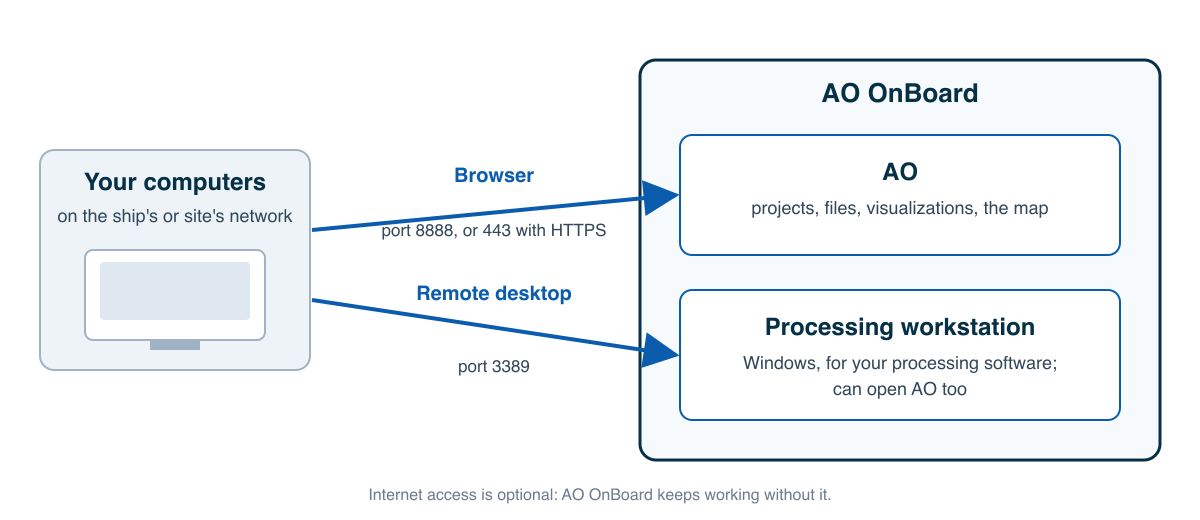
The virtual machine image has no processing workstation: your own computers do the processing.
Signing in to AO OnBoard and its workstation covers both. Setting up and powering AO OnBoard covers where to put it and how to start and stop it.
AO OnBoard and AO in the cloud
AO OnBoard is a complete AO of its own. It has its own projects and its own accounts, and it keeps working when it has no internet access.
- Without internet: your data, projects and visualizations on AO OnBoard keep working. Features that come from the internet, such as online basemaps and global terrain, Microsoft or Google sign-in, and Remote Sync, work again when the connection returns. See Using AO offline.
- Copying projects ashore: with Remote Sync, a Professional or Admin copies whole projects, with their files, visualizations and objects, to AO in the cloud while AO OnBoard has internet access. Copying a project again brings over only what's new or changed.
- Accounts: your AO OnBoard account is separate from any account you have on AO in the cloud. Remote Sync asks you to sign in to the destination.
- Releases: AO OnBoard runs the AO release installed on it. It gets the changes in the release notes when it's upgraded to that release. See Moving data and upgrading AO OnBoard.
Remote support
Remote support is optional. It's set up only on systems where your organization has agreed to it, and only over connections your network team allows. Where it's arranged, Terradepth support can connect to your system to help, for example to the workstation by remote desktop or to AO. AO OnBoard works fully without it, including on networks with no internet access. To arrange it, or to ask what's set up on your system, contact support@terradepth.com.
For your IT and network team
Pass them Firewall and allowlist quick reference: it lists what to allow for browser access and remote desktop. Remote support rules apply only if your agreement includes it. Network and firewall requirements has the details, including networks with no internet at all. Admin tasks such as users and organization settings are in Administering AO.
Getting help
Email support@terradepth.com. To help support answer quickly, include:
- Which kind of AO OnBoard you have, from the list above.
- Your AO version: click your initial in the top right corner, choose My Account and open Version. See My Account and display settings.
- What you were doing, the time it happened, and a screenshot of any message.
This Help Center is online only, and AO hides its Help Center link while it has no internet access. To have articles at hand at sea, save or print the ones you need while you're connected.
For a one-minute introduction, watch the AO OnBoard video in AO Videos.
Availability: Remote Sync is turned on per organization. To use it, contact support@terradepth.com.
Related: AO OnBoard quick start · Setting up and powering AO OnBoard · Signing in to AO OnBoard and its workstation