
AO has several ways to share your work: give people access to a project, send a link to what you're looking at, share a layer with other software or another AO, copy a position, or download files. This article covers each one and what the person you share with needs.
| To share | Use | The other person needs |
|---|---|---|
| A project | The project's Group Access tab | An AO account in your organization |
| What you're looking at | Copy share link in the Layers window | To sign in to AO, with access to every project in the view |
| A layer, for other software or another AO | Copy shared-layer definition or Copy Layer Definition | No AO account: the addresses work without signing in |
| A position | Copy Lat/Lon to Clipboard (right-click the map) | Nothing |
| Files | Download in a project's Files tab | Nothing |
Give people access to a project
People see a project when they created it, they're in a group that has access to it, or they're an Admin in its organization. Professionals and Admins give a group access on the project's Group Access tab: move the group from Organization's Groups to Assigned Groups, then save. Professionals share the projects they created with the groups they created. Only private projects have this tab. To create groups and add people, see User Management.
Share what you're looking at
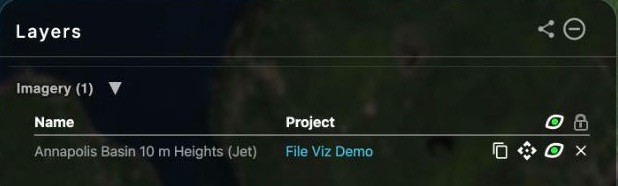
Open Layers at the bottom of the left toolbar and choose Copy share link (the share icon at the top). AO copies a link to the current view: the camera position, the layers and which are on, the base terrain and imagery settings, and the objects showing. If your browser blocks the copy, AO shows the link for you to copy. See Layers window.
The link isn't public. The person who opens it must be signed in to AO and belong to the organization you made it in; if they belong to several, AO switches to that one. They also need access to every project in the view. If they're missing one, AO shows "403: You do not have access to this resource" and opens the map without the shared view.
Share a layer with other software or another AO
- A visualization: in the Layers window, choose Copy shared-layer definition on an imagery, grid or point cloud layer (not vector). Or, in the project's Visualizations tab, open the visualization's actions and choose Copy Layer Definition (Professionals and Admins). AO copies addresses that serve the layer from your AO: TMS for imagery, plus XYZ when its tiles allow it, and 3D Tiles or Cesium terrain for point clouds and grids. AO doesn't serve these layers as WMS or WMTS, so in a GIS tool, add them as TMS or XYZ tile layers.
- An external layer: choose Copy shared-layer definition on it in the Layers window or the project's Layers tab. This copies its settings; the data still comes from the provider's server.
Shared-layer addresses work without signing in, so share them only with people who should see the data; to withdraw one, contact support@terradepth.com. Guests can't copy a visualization's definition from a private project.
To add a copied layer to a project, in this AO or another one, choose Paste AO shared layer in the Add External Layer dialog. See External layers. Viewers' networks must reach where the layer lives: your AO for a visualization, the provider for an external layer.
Copy a position
Right-click a point on the map and choose Copy Lat/Lon to Clipboard. AO copies the latitude, a space and the longitude, in the Position Units set in your My Account settings: Decimal Degrees, Degrees/Minutes or Degrees/Minutes/Seconds.
Download files
Users, Professionals and Admins can download files (in projects on a cloud mount, only Professionals and Admins): in a project's Files tab, select the files and choose Download. For large transfers and the AO CLI, see Moving Files In and Out of AO.
Public projects
Projects you create in AO are private, and AO has no setting to make one public. If your AO has public projects, everyone who signs in can view them, whatever their organization or role. Public projects are read-only: only Terradepth support staff can change them, and they have no Group Access tab.
Related: User Management · External layers · Reports and exports