
The Files tab lists a project's files and folders. This article covers organizing them: folders, renaming, copying and moving (also to another project), unzipping, finding and deleting. To upload or download, see Moving Files In and Out of AO. To visualize a file, see Project Management & File Visualization.
Open the Files tab
Open Projects at the bottom of the left toolbar, open the project and go to its Files tab. Choose a folder's name to open it; the path at the bottom of the table takes you back up.
| What you can do | Admin | Professional | User |
|---|---|---|---|
| Browse, search, download, and download a Report (in projects on a cloud mount, Professionals and Admins only) | ✓ | ✓ | ✓ |
| Add folders, rename, copy, move, unzip and delete | ✓ | ✓ |
Guests can't open the Files tab. Public projects are read-only: you can browse and download their files, but not change them.
The menus
- The ... menu at the right of the toolbar: Add Folder, Copy Selected, Move Selected, Refresh Files and Refresh Visualizations. Users see only Refresh Visualizations.
- Each row's ... menu: Rename, Copy and Move, plus Visualize for files AO can visualize and Unzip for ZIP files.
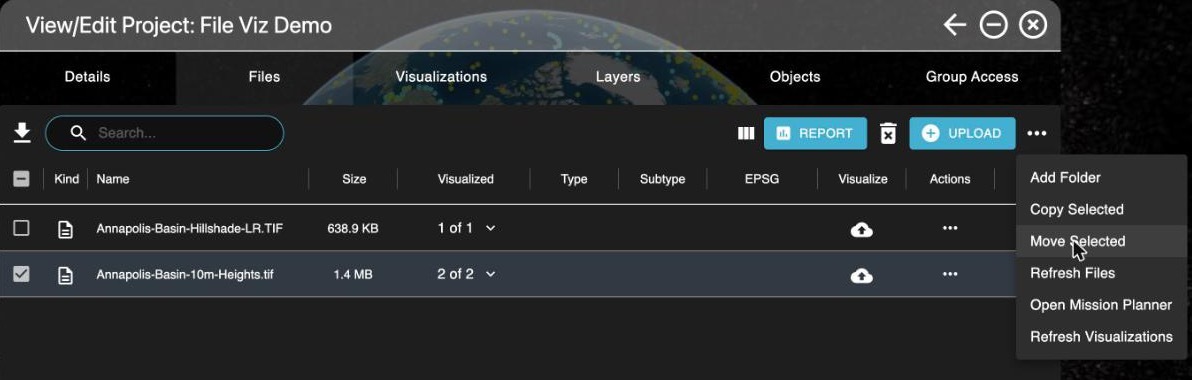
Refresh Files reloads the list, for example after files arrive from the AO CLI. Refresh Visualizations updates the status of the visualizations listed under each file.
Add or rename a folder or file
- Add a folder: choose Add Folder, type a name and choose Save. It goes inside the folder you're in. To add nested folders in one step, separate the names with a slash, such as
2026/Line 01. - Rename: choose Rename on the row's ... menu, type the new name and choose Save. A renamed folder keeps everything in it. Names can't contain
< > : " / \ | ? *.
When you add or rename, AO treats names that differ only in capitalization as the same name: "raw data" counts as "Raw Data".
Copy or move files
You can copy or move several files at once, to another folder or to another project in your organization.
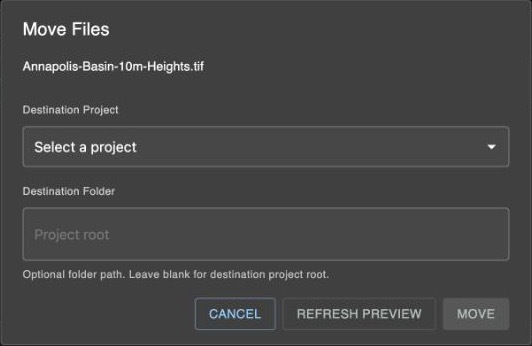
- Select the files, then choose Copy Selected or Move Selected in the toolbar's ... menu. For one file, you can also use Copy or Move on its row.
- Choose the Destination Project. To change folders, choose the project you're in.
- Type a Destination Folder, or choose the folder icon, browse to it and choose Select Folder. Leave it blank for the top of the project.
- Read the preview, choose Copy or Move, then confirm.
| Copy | Move | |
|---|---|---|
| Visualizations | Stay with the originals; visualize the copies if you need to | Go with the files to the other project |
| AO stops it when | A file with the same name is in the destination folder | The same, and, to another project, when a visualization with the same name is there or you left out a file a visualization needs (see Missing linked files in the preview) |
You can move up to 1,000 files at a time. If a move empties a folder, AO removes it.
You can't copy or move a folder. Open it and select its files instead: when you move them, AO creates the Destination Folder path if it doesn't exist.
For projects whose files are on a cloud mount, see Cloud mounts.
Unzip a ZIP file
Choose Unzip on a ZIP file's row. AO extracts it into the same folder and keeps the ZIP. Extracted files replace files with the same name in that folder. Unzip isn't available for files on a cloud mount. For when to zip, see Best practices for loading data to AO.
Find files
- Search... finds files, folders and visualizations by name, in the folder you're in and the folders inside it (on a cloud mount, only the folder you're in).
- Choose a column heading, such as Name or Size, to sort. The Visualized column's menu shows All, With visualizations or Without visualizations.
- Show/Hide Columns picks the columns.
- Report downloads a CSV of the selected files' paths, names and sizes. Tick Include visualization data to add their visualizations.
Delete files and folders
Select the files or folders, choose the  delete icon, then Delete in Are You Sure?. Deleting can't be undone, and deleting a folder deletes everything in it.
If the files have visualizations, tick Also Delete Associated Visualizations to delete those too; otherwise they stay on the Visualizations tab. AO doesn't delete visualizations still being made: cancel them on the Visualizations tab first, or AO says "Cannot delete rendering visualization(s), Please cancel them before trying again."
Related: Project Management & File Visualization · Moving Files In and Out of AO · Reports and exports