
Applies to:
Organizations with multiple organization membership turned on
With multiple organization membership, one AO account can belong to several organizations, such as your company's and a partner's. This article covers switching between them, what changes in each, adding someone who already has an account, and share links and Remote Sync.
Switch organizations
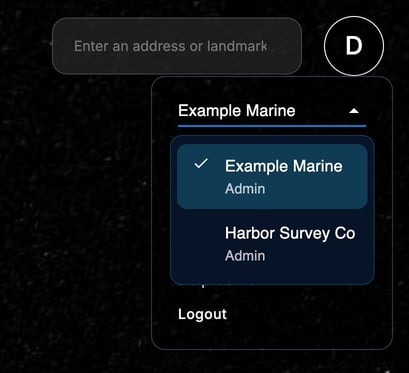
- Click your initial in the top right corner. The top of the menu shows the organization you're working in.
- Choose it to list your organizations, with your role in each. The one you're in comes first, with a check mark.
- Choose another organization.
AO reloads in that organization, in every AO tab you have open. Each time you sign in, AO opens in the first organization you joined that has multiple organization membership turned on, or else in the organization that created your account. The list appears only when you belong to more than one organization.
What changes with the organization
| Changes with the organization | Stays the same |
|---|---|
| Your role and your groups | Your email, password and how you sign in |
| The projects you see: the organization's projects you have access to, plus public projects | Your name and nickname |
| Where new projects go: the organization you're working in | Your display settings in My Account |
| The Users and Groups lists | |
| The organization's external layers in the Layers window, and its cloud mounts | |
| Remote Sync's Sent and Received lists | |
| Features turned on for the organization, such as Remote Sync |
Check which organization you're in before you create a project or upload files. To see each project's organization in the Projects window, choose Show/Hide Columns and add Organization. When projects from different organizations share a name, AO adds the organization's name to them, unless the Organization column is shown.
Add someone who already has an AO account (Admins)
Click your initial, choose Users, then Add User, and enter their email and the role they'll have in your organization. If the email already has an AO account, AO adds that account to your organization. The person doesn't set a new password: AO emails them that you've added them, with a link to sign in and a reminder to switch organizations. The link uses the address you have AO open at, so add people while AO is open at the address everyone uses.
In your organization you set their role and groups, and you can remove them without affecting their other organizations. Only Admins of the organization that created their account can change their name, nickname and email, or use Copy Reset Link for them. Changes made in another organization aren't saved.
If they're already in your organization, AO shows An account for this email already exists. If your organization doesn't have multiple organization membership turned on, AO can't add an email that already has an account.
See User Management.
Share links
A share link belongs to the organization it was made in. When someone who belongs to several organizations opens it, AO switches them to that organization first. They should then reload any other AO tabs they have open. They also need access to every project in the view. See Sharing.
Remote Sync
Remote Sync copies projects from the organization you're working in. On the destination AO, you choose which of your organizations to copy to, from those where you're a Professional or higher. See Remote Sync.
Availability: multiple organization membership is turned on per organization, and each organization you switch between needs it. To use it, contact support@terradepth.com.
Related: User Management · Signing in and passwords · Features turned on per organization