
Applies to:
Organizations with Remote Sync turned on
Remote Sync copies whole projects, with their files, visualizations and objects, from one AO to another: for example, from AO OnBoard on a vessel to AO in the cloud. This article covers who can use it, how to copy projects, and how to follow and repeat a sync.
The destination gets its own copy of each project. To work with files that stay on another AO instead, use a cloud mount to that AO.
Who can use it
- On the AO you copy from: the Professional role or higher.
- On the destination AO: an account there with the Professional role or higher in the organization you copy to. You sign in with it during the sync.
Remote Sync is hidden while AO is offline. It comes back when your computer reconnects to a network, or when you refresh the page after internet access returns. See Using AO offline.
Copy projects to another AO
Click your initial in the top right corner and choose Remote Sync, then New Remote Sync.
- Select Destination: enter the Destination URL, the address of the other AO, such as
https://ao.terradepth.com, and choose Validate URL. - Login to Destination: enter your email and password for the destination and choose Sign in with email, or use a single sign-on button if the destination offers one.
- Select Destination Organization: if you're a Professional or higher in more than one organization there, choose the Organization to copy to, then Continue. Each is listed with your role there.
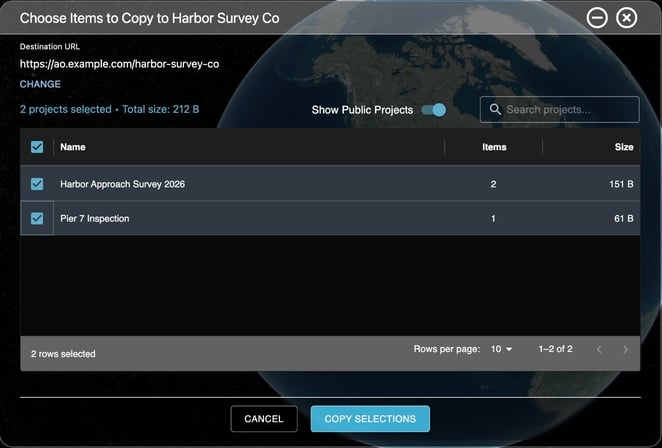
- Choose Items to Copy: select the projects. Items counts each project's files, visualizations and objects; hover over it for the breakdown. Use Search projects... to find a project, and turn on Show Public Projects to list public ones too. To pick another destination, choose Change.
- Choose Copy Selections. AO starts the sync and shows its progress.
Follow a sync
The progress window lists each project with its Processed Items and Status. To stop a sync that's queued or in progress, choose Cancel Sync.
You can minimize the Remote Sync window and keep working; the sync's progress shows next to your initial in the top right corner. When it finishes, the window shows Sync Completed Successfully, Sync Partially Completed, Sync Failed or Sync Canceled.
Sent and Received
The Remote Sync window lists your organization's syncs, newest first:
- Sent: syncs from this AO to another.
- Received: syncs that another AO copied to this organization. A received sync appears when it finishes.
Admins see all of the organization's syncs. Professionals see only the syncs made with their own account.
Each row shows Last Updated, Contents (hover to see the projects), Copied To, Destination URL and Status. Choose Refresh Syncs to update the lists. From a sync's Actions menu:
- View Contents: the sync's projects and their progress.
- Copy Again: repeat a sent sync, with the same projects, to the same destination and organization. It's available once a sync is Completed, Partial Completed, Failed or Canceled. If your sign-in to the destination has expired, AO asks you to sign in again.
Copying a project again
Copying a project that's already on the destination brings over only what's new or changed. AO looks for a project with the same name in the destination organization and adds to it:
| On the destination | What AO does |
|---|---|
| A file with the same folder, name and contents | Skips it |
| A file with the same folder and name but different contents | Replaces it with the new version |
| A visualization with the same name and size | Skips it |
| The same object | Skips it, or updates it if its comments changed |
If nothing needed copying, the sync says Files were already transferred. This also makes Copy Again a quick way to finish a sync that failed or was canceled part way.
Availability: Remote Sync is turned on per organization. To use it, contact support@terradepth.com.
Related: Moving data and upgrading AO OnBoard · Connecting AO to other data · Multiple organizations