
This article covers signing in to AO with your email and password or with single sign-on, resetting a password, and what to do when you're locked out or a link has expired.
Sign in
Open your AO address in a browser: https://ao.terradepth.com for AO in the cloud, https://gov.terradepth.com for AO for government, or your organization's own address for self-hosted AO and AO OnBoard.
- With email and password: enter your Email and Password, then choose Sign in with email or press Enter.
- With single sign-on (SSO): choose a button such as Login with Microsoft or Login with Google, then sign in with that account. It works when you have an AO account with the same email address (with Microsoft, the same as your Microsoft sign-in name, capital letters included). If you don't, the page says you're "not yet setup for login" and asks you to contact your administrator.
If your organization gave you its own AO sign-in link, use it: it shows only your organization's sign-in options.
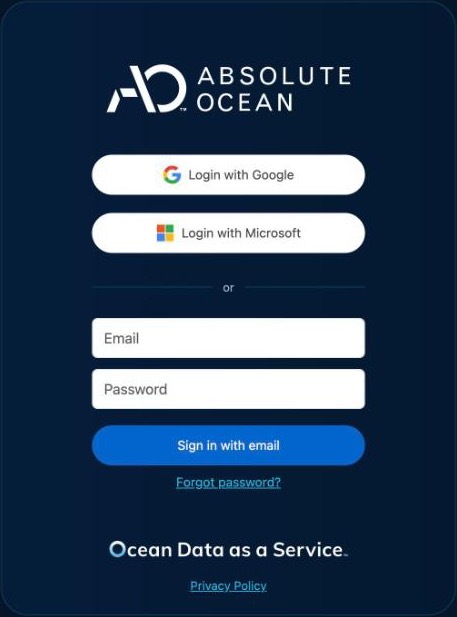
If sign-in fails, the page says why:
| Message | What to do |
|---|---|
| "Invalid credentials" | Check your email and password, or choose Forgot password? |
| "Too many failed login attempts. Please try again later." | By default, AO locks an account for an hour after 7 failed sign-ins. Wait and try again. Or reset your password: setting a new password also unlocks your account. |
| "Your password has expired. Please reset your password." | AO opens Password Reset with your email filled in. Choose Send and follow the link in the email. |
| "Network error" | AO couldn't be reached. Check your connection and try again. |
Forgot your password
- On the sign-in page, choose Forgot password?.
- Enter your Email and choose Send. AO says "If an active account exists for this email, a password reset link will be sent."
- In the email, choose Reset Password.
- Enter your New Password and Confirm Password, then choose Reset.
- Sign in with your new password.
The link lasts 24 hours and works once. Asking again replaces earlier links, so use the newest email. If you've just asked, AO tells you how long to wait before asking again. After many requests, it says "Too many password reset requests in the last hour. Please try again later or contact support."
Setting a new password signs you out of AO everywhere you were signed in.
To change your password while signed in: click your initial in the top right corner, choose My Account, open Profile and choose Reset Password.
Password rules
A password needs at least 8 characters, with at least one uppercase letter (A–Z), one lowercase letter (a–z) and one number. Symbols aren't required. The New Password box shows these rules, and if a password breaks one, AO says which, for example "Password must contain at least one number."
You can't reuse a recent password (by default, your last 10): AO says "Password has been used previously. Please choose a different password."
Passwords expire after a set time, 365 days by default. AO tells you when you sign in, and takes you to Password Reset.
If you sign in with single sign-on, such as Microsoft, Google or Keycloak, you use that account's password, and you change it with that provider.
Invitation links
When an Admin adds you to AO, you get an email with a Create Password button. Choose it, set your password and choose Reset, then sign in. If you already have an AO account, AO emails you that you've been added to the new organization instead: sign in as usual.
An invitation link lasts 24 hours. If yours has expired, AO says "Your password invitation has expired. Please request a new password reset." and opens Password Reset with your email filled in. Choose Send for a new link, or ask your Admin to send a new invitation. A new invitation arrives as a password reset email with a Reset Password button.
Sign out
Click your initial in the top right corner and choose Logout. This signs you out of this browser only. AO keeps you signed in on a browser until you choose Logout or don't use AO for a year, so sign out when you use a shared computer. You can be signed in on up to 10 browsers at a time.
When to ask your Admin
If an email doesn't arrive, check your junk folder, then ask an Admin. Admins can send a new invitation (Email Invitation Link) or reset (Email Password Reset), change your email address, and add you to AO so you can use single sign-on. For people without email, such as on a ship's network, an Admin can use Copy Reset Link and pass the link on. It copies only when AO is open over https:// or on the AO server itself. See User Management.
To set up single sign-on for your organization, see Set up single sign-on.
Availability: Copy Reset Link is turned on per organization. To use it, contact support@terradepth.com.
Related: Set up single sign-on · My Account and display settings · Multiple organizations