
What to check when something in AO doesn't work: where AO shows the error, common problems, and what to send support so they can help quickly.
Find the error message
| Where | What to look for |
|---|---|
| A visualization | On the project's Visualizations tab, one that didn't finish shows Failed. Choose its ... in the Actions column, then View Error Message. |
| A coordinate system, when you visualize | The icon beside Main CRS or Vertical CRS shows whether AO can transform it. Choose it for details: Technical diagnostics has the specifics, and Copy diagnostics copies them for support. See Vertical and Horizontal Datum. |
| An upload | Each file in the upload list shows a status (below). |
| A project on a cloud mount | Cloud Mount Configuration Error or Cloud Mount Path Not Found when the Files tab opens. See Cloud mounts. |
| The map | A message at the bottom of the map. If it says the map renderer stopped, choose Reload page. |
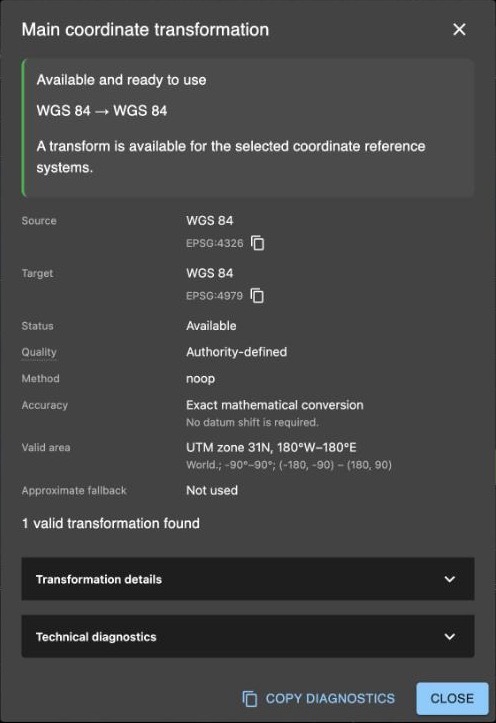
The coordinate system row above: choose the icon beside Main CRS or Vertical CRS to open this window, then Copy diagnostics for support.
Upload statuses
| Status | What it means |
|---|---|
| Preparing File | Getting ready to send. |
| Uploading | Sending; the bar shows progress. On a cloud mount: Step 1/2: Uploading to AO, then Step 2/2: Transferring to cloud... |
| Uploaded | Done. |
| Already Uploaded | The same file is already there; nothing changed. |
| Conflict — waiting | A file with the same name is there. Choose Keep Both, Skip, Replace or Stop. |
| Skipped | You chose Skip; the existing file stays. |
| Conflict — stopped | You chose Stop, which ends the upload: this file and any not yet sent weren't uploaded. |
| Upload failed | Choose Retry. |
| Already on cloud — rename and retry | The mount's folder has a file with this name. Rename yours and upload again. |
Common problems
Most problems are the same on every AO. Network, sign-in and hardware problems depend on the kind of AO you use, so they're grouped below.
Any AO
| If | What to do |
|---|---|
| A visualization failed | Read its error message (see Find the error message, above). If it says Unknown error occurred during rendering. or Unknown error visualizing file., AO didn't record a reason. Then check the file against Supported file types and format requirements, and the options you chose against the File Visualization Table. |
| Data shows in the wrong place, or above or below the terrain | Check the coordinate system and vertical datum you chose. A grid with a cliff between it and the terrain around it usually has the wrong vertical datum. See Vertical and Horizontal Datum. |
| The icon beside Main CRS or Vertical CRS says no transform is available | Check that you chose the entry with the right units and direction (heights up or depths down). For the vertical datum, you can enter a Custom Vertical Offset instead. See Vertical and Horizontal Datum. |
| AO says Unable to verify transform offline. | Without internet access, AO's check of the transform didn't answer. If Generate Visualization stays unavailable, choose the CRS again or contact support. See Using AO offline. |
| An upload failed or is waiting | Its status in the upload list, above, says what to do. See Moving files in and out of AO and Best practices for loading data to AO. |
| A large upload or download is slow, stops partway, or a download seems stuck | In the web app, a download of several files waits while AO builds one ZIP on the server, with no progress bar, and the page stops waiting after an hour. For large projects or many gigabytes, use the AO CLI: when you run it again, it skips the files that already finished. The Quick guide in Moving files in and out of AO compares every way to move files. |
| You can't find a project | You see a private project when you created it, are in a group with access to it, or are an Admin in its organization. Ask your Admin for access. If you belong to more than one organization, check which one you're in. See Sharing and Multiple organizations. |
| You can't find a file | On the project's Files tab, use Search... to find files, folders and visualizations by name. Guests can't open the Files tab. See Managing files in a project. |
| You can't sign in, you're locked out, or a link has expired | See Signing in and passwords: it explains each sign-in message. |
| An invitation or password reset email doesn't arrive | Check your junk folder, then ask your Admin to send a new one. |
| A menu item, tab or button is missing | Your role may not include it: ask your Admin. Some features are turned on per organization: see Features turned on per organization. |
| Help Center is missing from the menu under your initial | AO has no internet access, or can't confirm it. See Using AO offline. |
| An external layer doesn't load | See "If a layer doesn't load" in External layers. |
AO in the cloud and AO for government
| If | What to do |
|---|---|
| AO doesn't load | Your network must allow ao.terradepth.com (AO in the cloud) or gov.terradepth.com (AO for government) on 443/TCP. Pass Firewall and allowlist quick reference to your IT team. |
| AO is unavailable in the evening, US Central time | Terradepth updates AO in the cloud and AO for government in the evening, US Central time (CT), and may also use a maintenance window every other Wednesday from 10 pm CT. Check the status page at status.ao.terradepth.com, and try again later. |
| AO is slow at times or says services are unavailable | Usually TLS inspection or browser isolation on the AO host. Your IT team can exempt it: see Network and firewall requirements. |
| Terrain, basemaps or a built-in layer don't load | Their hosts are blocked. See Optional: online map layers and services in Firewall and allowlist quick reference. |
| An invitation or reset link says it has expired the first time you use it | Your mail gateway may have held the email. Ask your Admin for a new link, and your IT team to accept AO's mail. |
| Login with Microsoft or Login with Google doesn't work | If the page says you're "not yet setup for login", your AO account doesn't have the same email address (with Microsoft, capital letters must match too): ask your Admin. Otherwise, your network may block login.microsoftonline.com or accounts.google.com. See Set up single sign-on. |
Self-hosted AO and AO OnBoard
| If | What to do |
|---|---|
| AO doesn't open in the browser | Check the address: http://<your AO server>:8888/, or your https:// address if HTTPS is set up on the server or AO is behind a TLS proxy. Your computer must be on a network that reaches the AO server, and the server must allow inbound 8888/TCP or 443/TCP: see Firewall and allowlist quick reference. After the server starts, give AO a few minutes. |
| No one can sign in on a new server | First-time setup (./ao-mgr.sh init) creates your first organization and its first Admin. See Set up your AO server: checklist. |
| Invitation and reset emails don't arrive | AO sends them through your mail server. Set it up or check its settings: see Set up email for invitations and password resets, which also covers working without email. |
| The browser marks AO as not secure, or warns about its certificate | On an http://…:8888 address, AO isn't using HTTPS: use your HTTPS address if AO has one, or ask your IT administrator to set it up (see HTTPS in Administering AO). On an https:// address, your computer doesn't trust AO's certificate yet, or the address isn't the name on the certificate: ask your IT team. Before you accept a certificate warning, ask your IT team or Terradepth support. |
| Microsoft or Google sign-in doesn't work | They need HTTPS on your AO, and both your AO server and users' browsers must reach them over the internet. See Set up single sign-on. |
AO OnBoard
| If | What to do |
|---|---|
| You're getting in for the first time | Follow the AO OnBoard quick start. Terradepth sends your AO and Windows sign-in details separately from the system. If you don't have them, contact support@terradepth.com. |
| The AO OnBoard address doesn't open | Check that your computer is on the same network, and that AO OnBoard has had a few minutes to start. After a move to another network, its address may have changed: ask your network team. See Signing in to AO OnBoard and its workstation. |
| Remote desktop doesn't connect | Use the workstation's address from the guide delivered with your system, and your Windows account. Your network must allow 3389/TCP to the workstation. Closing the remote desktop window leaves your session running: connect again with the same account. See Signing in to AO OnBoard and its workstation. |
| The power goes out, or power aboard is unreliable | With a battery backup (UPS), AO OnBoard keeps running through a power cut. Without one, it stops at once and work in progress can be lost, so plug it into a UPS. When power returns, check that the UPS is on. If the system doesn't start, press its power button once. See Power cuts in Setting up and powering AO OnBoard. |
| You need to shut down or restart | Let uploads and visualizations finish, and ask people to save their work. Shut down from the system, never by holding the power button or pulling the power. See Shut down or restart in Setting up and powering AO OnBoard. |
| You need to move data on or off | Upload and download in a browser, or use an external drive through the workstation. See Moving data and upgrading AO OnBoard. |
| You need help without internet access | This Help Center is online only, so save or print the articles you need while you're connected. See Getting help in AO OnBoard overview. |
Contact support
Email support@terradepth.com, or choose Open a Support Request at the top of any Help Center page. Include:
- What you were doing, what you expected, and what happened.
- When it happened, with your time zone.
- The project, file and visualization names.
- The exact error message, any diagnostics you copied, and a screenshot.
- A screenshot of Version: click your initial in the top right corner, choose My Account and open Version.
- Which AO you use: AO in the cloud, AO for government, self-hosted AO or AO OnBoard.
Related: General FAQ · Network and firewall requirements · Using the Help Center